

Want to keep your website fresh without writing articles from scratch every single day? Content curation is a highly effective way to build niche authority, provide value to your readers, and maintain a consistent publishing schedule.
If you run a WordPress site, the wp rss aggregator plugin is the undisputed industry standard for importing, managing, and displaying RSS feeds.
However, importing external content can be tricky. Recent search engine developments, like the May 2026 Core Update and June 2026 AI Search changes, penalize low-effort “autoblogging” sites that scrape and republish unedited text. To rank well in modern search ecosystems and AI overviews, you must prioritize original curation, editorial oversight, and strategic value.
Let’s explore how to use WP RSS Aggregator effectively, safely, and in alignment with modern web standards.
What is WP RSS Aggregator?
WP RSS Aggregator is the oldest and most popular RSS feed plugin for WordPress. It allows you to fetch content from multiple external websites—such as news portals, blogs, YouTube channels, and podcasts—and bring that data directly into your own WordPress dashboard.
Core Features and Use Cases
The core plugin is completely free and lets you display imported feed links anywhere on your site using simple shortcodes or native Gutenberg blocks. For advanced workflows, premium plans offer deep customization, automated keyword filtering, and the ability to convert feed items into actual WordPress posts.
Understanding the full scope of what this plugin can do helps you implement it without risking your site’s search visibility.
1. Simple Feed Display vs. Feed-to-Post
The free version allows for standard feed display. This means external headlines are pulled in dynamically and listed on your site as external hyperlinks. This is highly safe for SEO because you aren’t hosting copied content; instead, you act as a helpful directory or resource hub.
The premium “Feed to Post” feature actually creates native posts or custom post types (CPTs) in your WordPress database using the feed data. This is ideal for building job boards, real estate listings, product aggregators, or highly curated news sites.
2. Powerful Keyword Filtering
You rarely want to import every single article from a source. WP RSS Aggregator’s filtering tools allow you to whitelist or blacklist content based on specific keywords, tags, or phrases. This ensures that your curated feeds stay strictly relevant to your specific audience.
3. Integrated AI Capabilities (New for 2026)
Following recent updates, WP RSS Aggregator has integrated direct AI controls into its Pro and Elite tiers. Instead of publishing raw, duplicate text, the plugin can automatically generate unique AI summaries, craft quick “TL;DR” bullet points, or rewrite incoming feeds into your brand’s unique voice before saving them as drafts.
Technical Comparison: Free vs. Premium Plans
To help you decide which version fits your budget and workflow, here is a breakdown of the current features and pricing tiers:
| Feature | Free Version | Basic Plan ($99/yr) | Pro Plan ($199/yr) | Elite Plan ($269/yr) |
| Unlimited Feed Imports | ✅ Yes | ✅ Yes | ✅ Yes | ✅ Yes |
| Shortcode & Block Display | ✅ Yes | ✅ Yes | ✅ Yes | ✅ Yes |
| Premium Layout Templates | ❌ No | ✅ Yes | ✅ Yes | ✅ Yes |
| Keyword & Category Filtering | ❌ No | ✅ Yes | ✅ Yes | ✅ Yes |
| Feed-to-Post (Import as Post) | ❌ No | ❌ No | ✅ Yes | ✅ Yes |
| Full-Text RSS Fetching | ❌ No | ❌ No | ✅ Yes | ✅ Yes |
| AI Summaries & Rewriting | ❌ No | ❌ No | Limited (Summaries) | Full AI Integration |
How to Set Up Your First Feed
Setting up a feed takes only a few minutes. Follow these fundamental steps to establish a clean process.
1.Install and Activate the Plugin:Required Step.
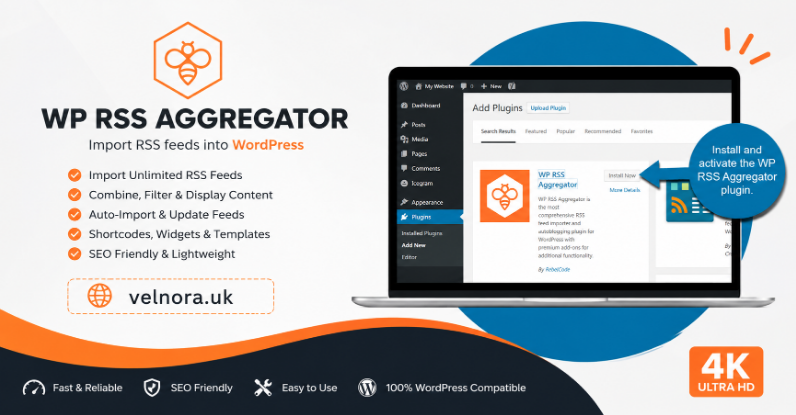
Navigate to your WordPress dashboard, go to Plugins > Add New, search for WP RSS Aggregator, and click install and activate.
2.Add a New Feed Source:Gathering Data.
Go to the new Aggregator menu item in your sidebar and click Add New Source. Paste the target website’s RSS URL into the URL field. If you don’t know the exact feed URL, simply type the main website address; the plugin’s auto-discovery feature will try to locate it for you.
3.Configure Import Settings:Server Optimization.
Set your fetch intervals. To avoid overloading your web hosting server or getting blocked by the source website, schedule updates to happen every few hours or once a day rather than every few minutes.
4.Publish the Feed on Your Site:Going Live.
Copy the automatically generated shortcode (e.g., [wp_rss_aggregator]) and paste it into any page, post, or widget area where you want the live list of articles to appear.
Curation vs. Aggregation: Protecting Your SEO
Using an automated tool to scrape other websites and post their articles directly onto your site as full text will rapidly damage your organic rankings. Modern search algorithms easily spot duplicate content and downrank low-value sites.
To maintain trust and rankings, keep these guidelines in mind:
- Always Attribute and Link Back: If you use Feed-to-Post, ensure the plugin automatically adds a clear canonical link or direct hyperlink back to the original source author.
- Use Manual Moderation: Set your imported feeds to save as Drafts or Pending Approval instead of publishing automatically. Read through them and add your own expert commentary, counterpoints, or unique perspective before hitting publish.
- Leverage AI Safely: If you utilize the built-in AI rewriting tools, always preview and refine the generated text. Ensure the resulting article sounds natural, addresses your audience’s clear needs, and avoids robotic phrasing.
Conclusion
The wp rss aggregator plugin remains an exceptional tool for building an organized content hub, adding dynamic news resources, and scaling your content production footprint seamlessly. By prioritizing high-quality curation over reckless automation, you can supply your audience with immense value while keeping search engines happy.
FAQs
Is using WP RSS Aggregator legal?
Yes, using RSS feeds is completely legal because websites explicitly publish RSS feeds to distribute public headlines. However, pulling in an entire copyrighted article without permission and monetizing it can lead to copyright issues. Always link back to the original source and stick to short summaries or excerpts.
Will imported RSS content hurt my site’s Google rankings?
If you simply display a list of headline links using shortcodes, it will not hurt your SEO. If you use Feed-to-Post to copy full articles verbatim without adding unique value, your site may be flagged for unoriginal or thin content.
Can I aggregate YouTube videos with this plugin?
Yes. You can input a YouTube channel URL or playlist URL as your feed source, and the plugin will seamlessly pull in the latest video uploads and embed them directly onto your site.
How do I stop the plugin from slowing down my website?
Set reasonable fetch intervals (e.g., updating every 12 to 24 hours) and limit the maximum number of old feed items stored in your database. Utilizing a quality WordPress caching plugin will also ensure your page loads instantly for visitors.
For more articles and updates, visit: VELNORA